Phones are banned in many classrooms, half the class may not have one, and some students simply forget theirs. You can still run a fast, noisy quiz game that every student takes part in. What you need is a way for answers to reach the board without a device in every hand. Here are three ways to do it, how to set up the room, and how to keep the scoring fair.
Three ways to play without student devices
- Teams answer on the board. Split the class into 3 to 5 teams. Each team agrees on an answer and one student taps it on the board, or tells you and you enter it. This needs only the computer that drives the projector or interactive board.
- Answer cards. Every student holds up a printed card turned to A, B, C or D, and you scan the room with your own phone. You get one answer per student instead of per team. The trade-off: cards only work for questions with a single answer and at most four options.
- Paper only. Mini whiteboards or colored paper (A = red, B = blue, and so on) work with no software at all. You count hands and keep score on the board. It is fine for ten minutes, but you lose the timer, the automatic scoring and any record of who got what wrong.
Most teachers end up using the first two: teams on the board when the goal is energy and discussion, cards when you also want to know which students still struggle.
Set up the room before the first question
- Make teams of three to five. Larger teams leave students out of the conversation. Mix stronger and weaker students, or let the class's existing study groups play together.
- Give each team a rotating "tapper". The same confident student should not answer every time. Rotate who walks to the board after each question.
- Allow talk time. Ten to twenty seconds of discussion before answers open is where most of the learning happens. Students explain their reasoning to each other instead of guessing.
- Mark who is absent. If a team is missing two members, it should not be penalized for it.
Write questions that work out loud
A question read from the board has to be understood in a few seconds by a whole team. Keep the stem to one or two lines, give four options at most, and make the wrong options real mistakes students make (for example, confusing the slope with the y-intercept), not jokes. Eight to twelve questions fill a fifteen-minute game comfortably.
Keep the scoring fair
- Score teams by share, not size. If points are the share of a team's present members who were right, a bigger team does not win just by being bigger.
- Let points grow by round. Doubling the value of the last round keeps teams that fell behind early in the game.
- Hide the scores near the end. A hidden last round keeps everyone trying until the final reveal.
- Keep game points out of grades. Points are for the game. If you want the quiz to count, count right answers, the same way you would for any quiz.
How to run it in ClassQR
In ClassQR, a quiz in a lesson can be played as a game. You choose how students answer before the room opens.
- Open the quiz and click Play. Under How students answer, choose On the board. The game types that need individual devices are greyed out; choose Teams. Then pick how teams answer: all at once, taking turns (another team may steal a missed question), or a question board where the team picks a tile and lucky tiles score double.
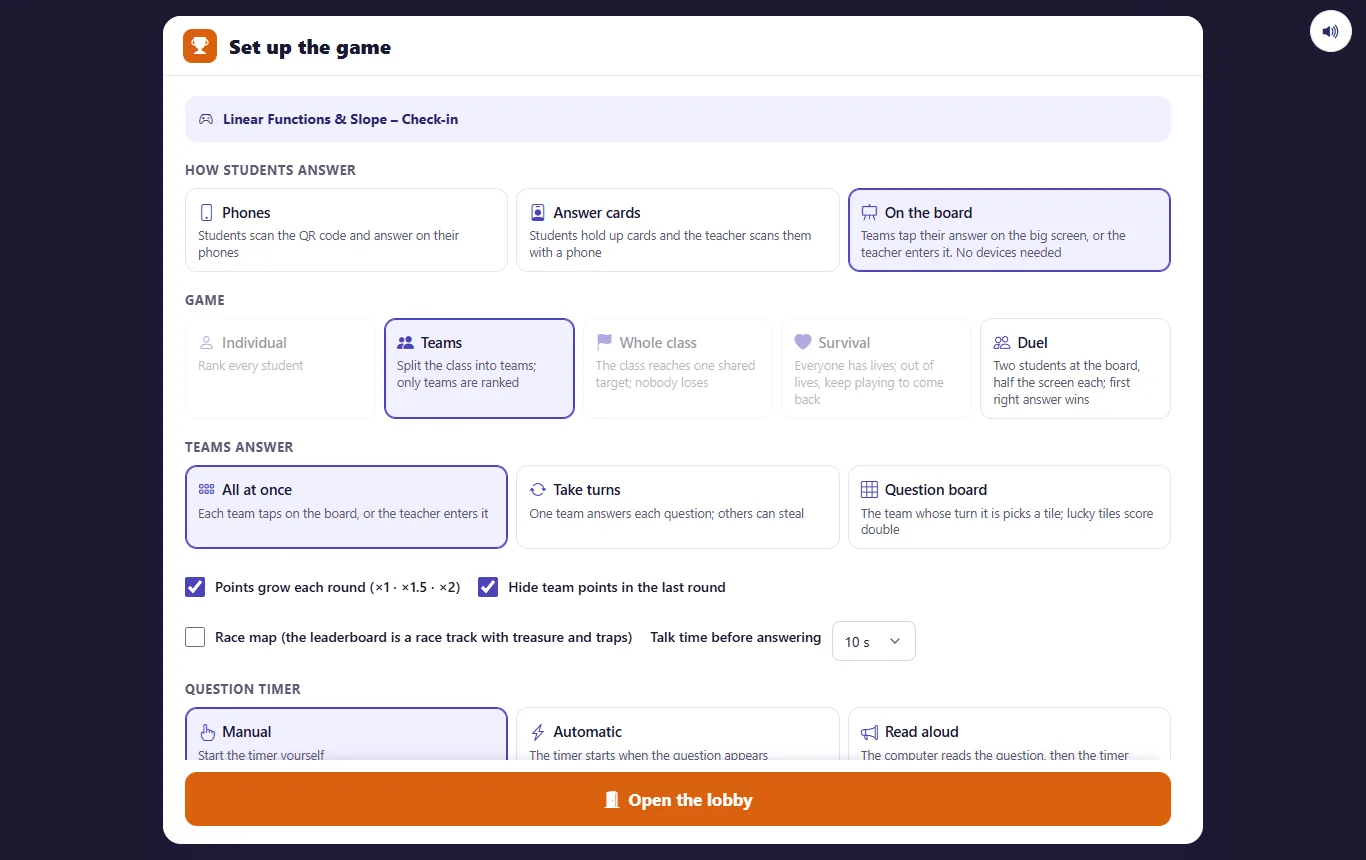
The setup menu with On the board and Teams selected. Points grow each round and the last round's points are hidden.
- Split the class. Choose 2 to 6 teams, split at random or balanced by past accuracy, or use one of the class's group types. Tap a name to move a student to the next team, or mark a student absent so the team is not penalized.
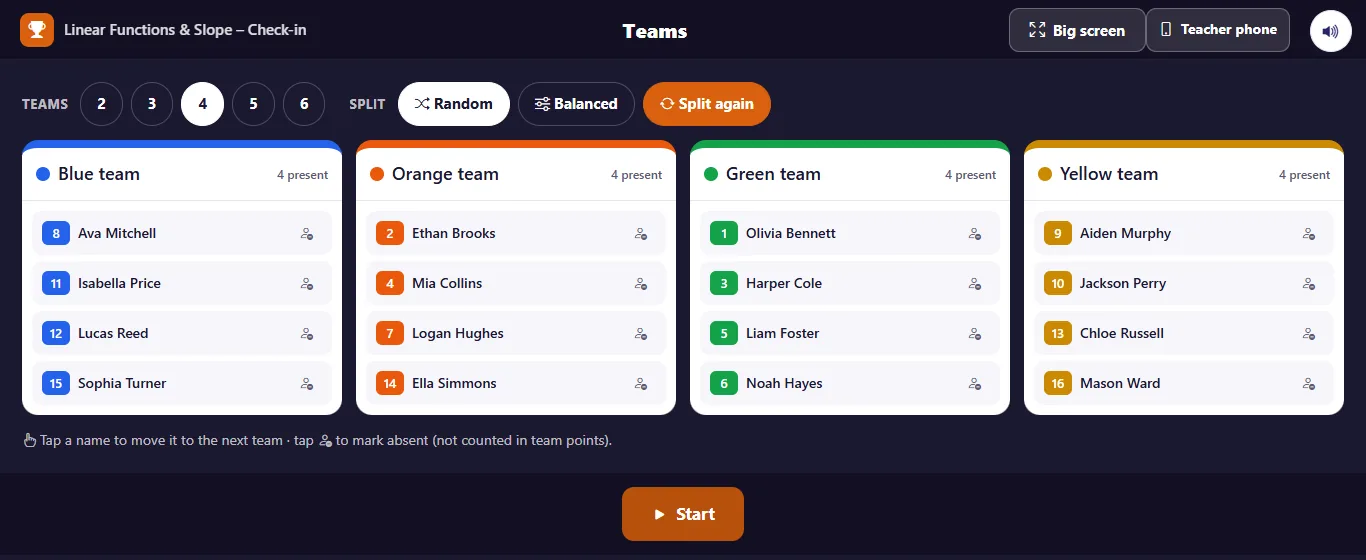
Four teams, split at random. The number next to each name is the student's seat number.
- Play. With talk time on, the question appears first and answering opens when the countdown ends. Each team taps its letter on the board, or you enter it. A team's choice shows only as Locked in, so the next team cannot copy it.
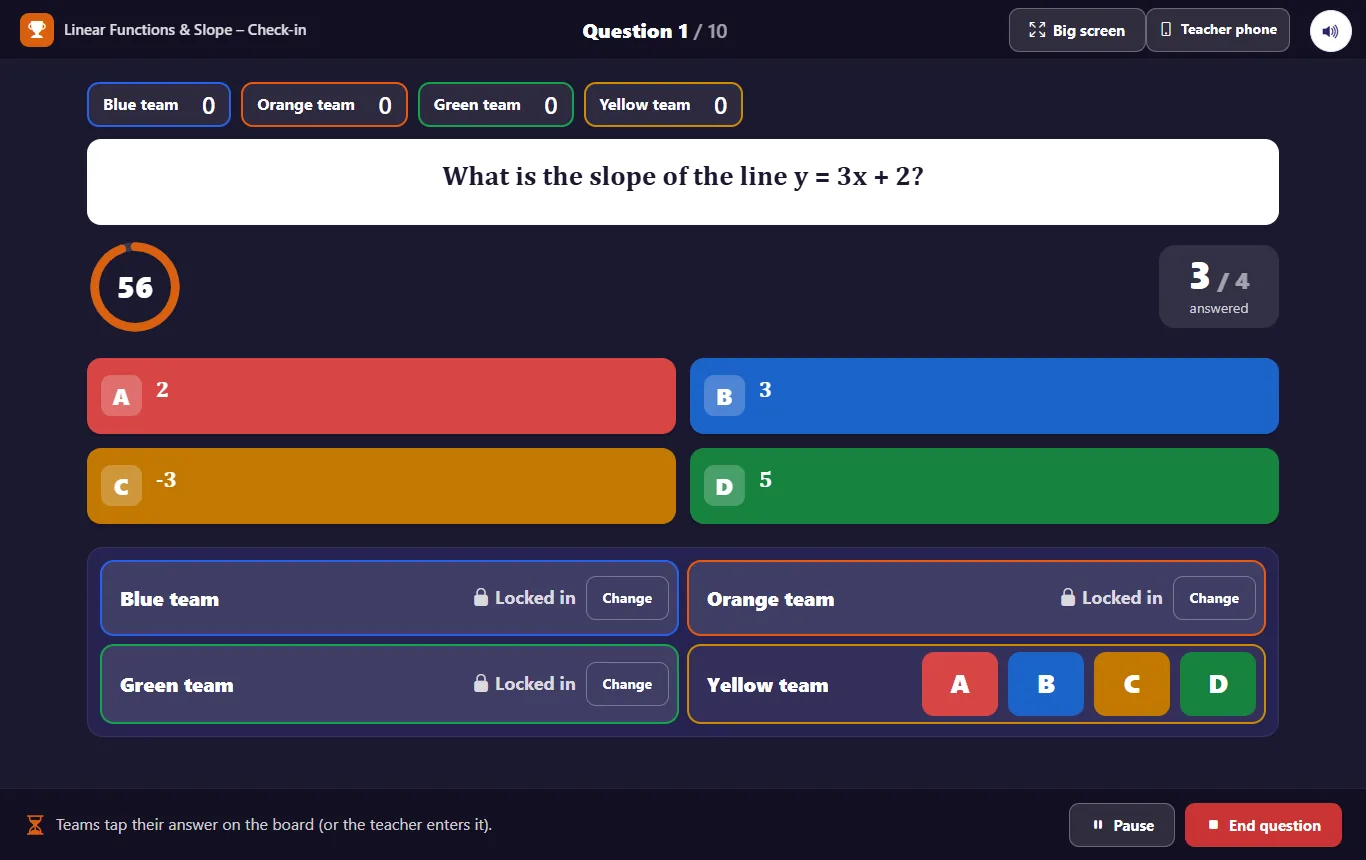
Three teams have locked in. The fourth still has its keys open.
- Close the question. The board shows the right answer, what each team chose and the points each team earned. From there, open the leaderboard or go to the next question.
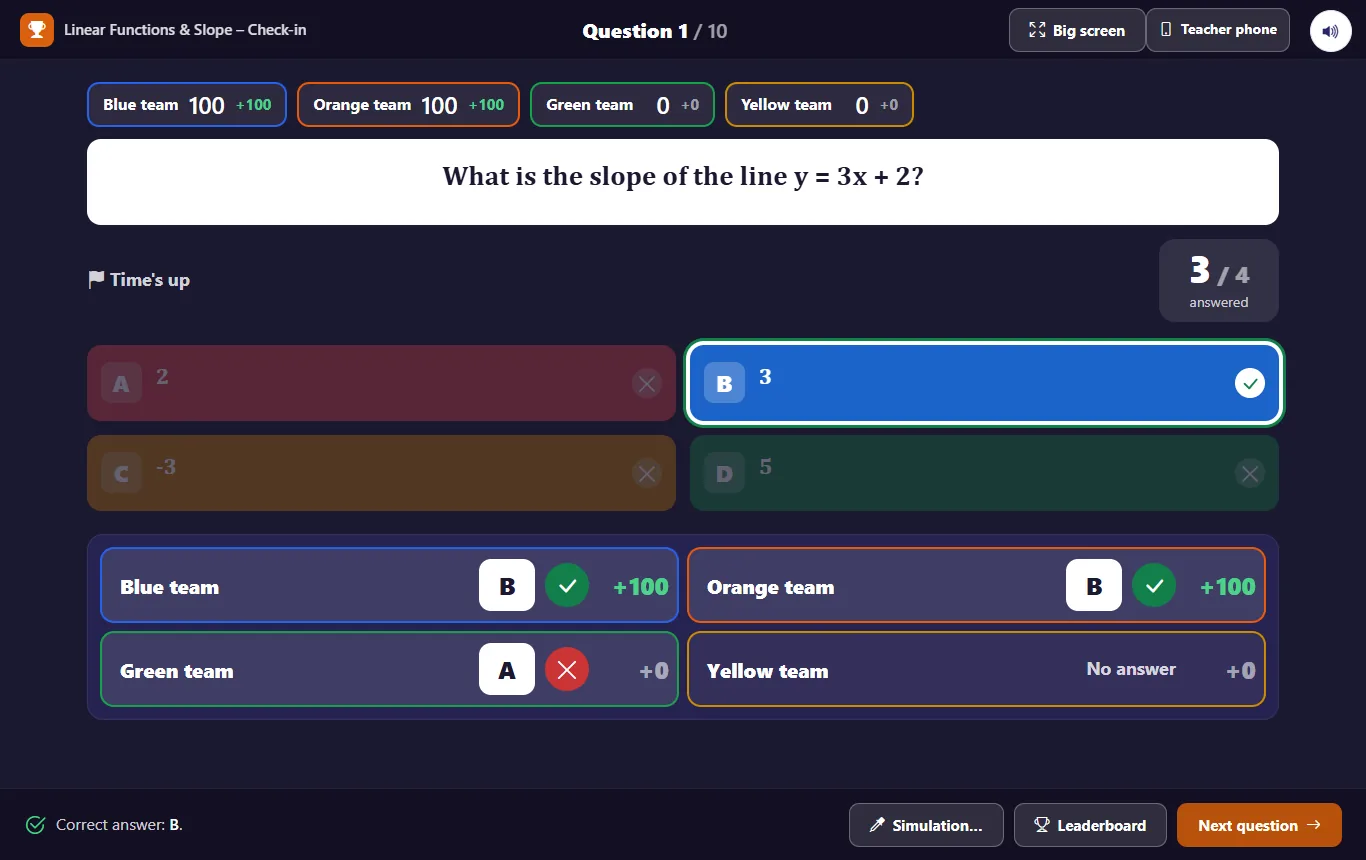
After the question closes: the right answer and each team's result.
You do not have to stand at the computer. Teacher phone shows a QR code; scan it with your phone and it becomes a remote to start, close and move to the next question, add or remove 50 team points, and enter a team's answer from anywhere in the room.
When you want one answer per student: answer cards
Choose Answer cards instead of On the board. Print the cards once from the quiz menu and reuse them in every class: card number N belongs to the student with seat number N. Students turn the card so the letter of their answer is on top, and you scan the class with your phone. Each student's answer is recorded as if they had answered on a device, so you can see who missed what.
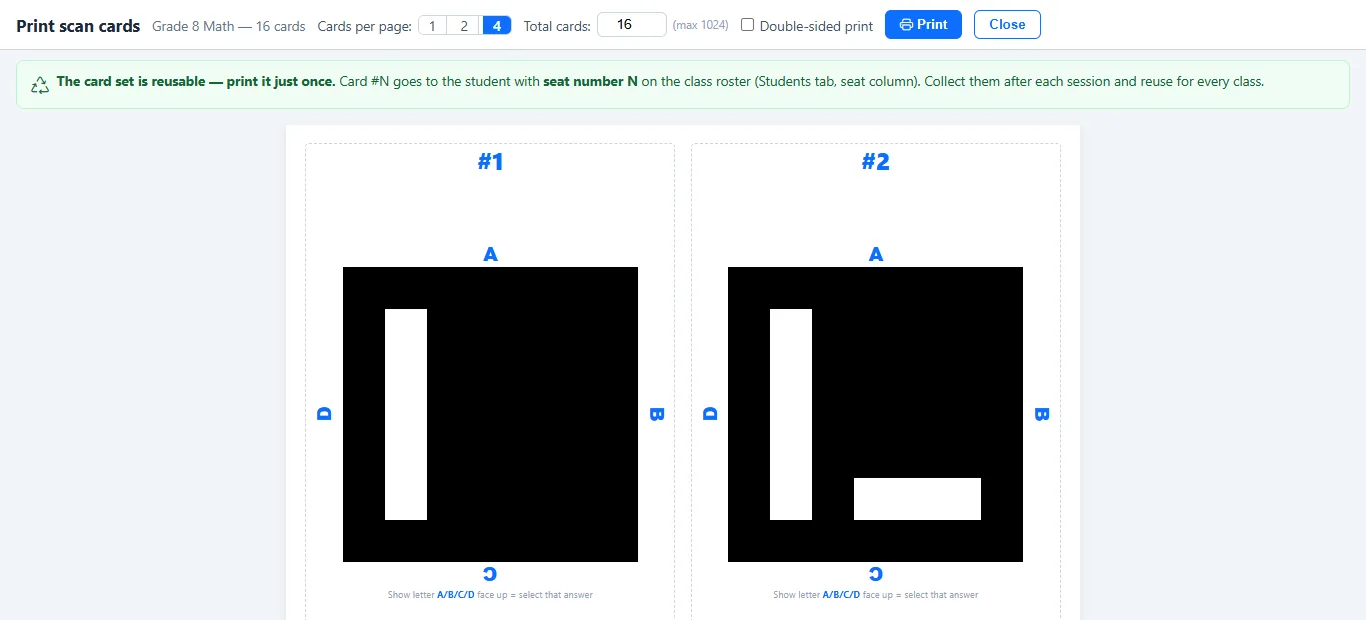
Printable answer cards. The letter facing up is the answer.
Cards can only be scanned for questions with one right answer and up to four options. Fill-in and essay questions are marked right or wrong per student on your phone instead.
After the game
- Ask the missed questions again. Replay the most-missed questions without changing any scores, then compare the first and second results.
- Assign a short practice. Turn the missed questions into a practice that each student does later on their own device.
- Know what counts. Answers recorded per student (from cards or phones) go into the gradebook like any quiz. Team points and awards stay in the game.