Most tutoring centers do not lose students because nobody visits the website. They lose them between the visit and the first lesson: the class page does not answer the parent's questions, the form asks for too much, nobody calls back for three days, and by then the family has signed up somewhere else. This article walks through the path from visit to enrolled student, the few things that make the biggest difference at each step, and how to measure where you lose people.
1. Give every open class its own page
Parents compare classes, not centers. A single "Our programs" page makes them call to ask the basics. Each class you are enrolling should answer, on one screen:
- subject and level (Physics, Grade 10);
- start date and weekly schedule;
- tuition, in the format you actually bill (per month, per term);
- the teacher;
- seats left, if the class has a maximum size. "2 spots left" is honest urgency.
2. Ask for three things, not ten
The sign-up form only needs enough for a person to call back: the parent's name, a phone number and the student's name, plus an optional note. Date of birth, school, address and medical details can wait until the family has decided. Every extra field is a reason to close the tab.
3. Call back the same day
The parent who just filled in your form is comparing you with two other centers right now. A call within a few hours, while they still remember the class, is worth more than a polished brochure. If you cannot call the same day, send a short message saying when you will.
4. Track every application through the same stages
Use a short, fixed pipeline so nothing falls through the cracks:
| Stage | Meaning | What to record |
|---|---|---|
| New | Form received, nobody has called yet | Source (website, walk-in, phone) |
| Contacted | You spoke with the family | Next follow-up date and who does it |
| Enrolled | The student is in a class | Class and start date |
| Dropped | The family decided against it | One reason: price, schedule, distance, chose a competitor, no response |
The drop reasons are the most valuable data you will collect. Ten "schedule conflict" drops in a month is a clear sign to open a weekend group.
5. Measure the funnel monthly
Once a month, count applications by stage, by source and by class. You are looking for one number per row: of the families who applied, how many enrolled. A class with many applications and few enrollments has a pricing, schedule or follow-up problem; a source with few applications needs more promotion.
How it works in ClassQR
On the Standard and Pro plans, a class can be listed on the center's own website with a sign-up form, and every sign-up lands in one list your staff work through.
- List the class. In the class settings, open the Enrollment tab, turn on listing on the enrollment page, and fill in the teacher, start date, schedule, tuition, maximum class size and a short description. The class appears under
/classeson your center's website, with seats left counted from the class size. When seats run out, visitors see that the class is full.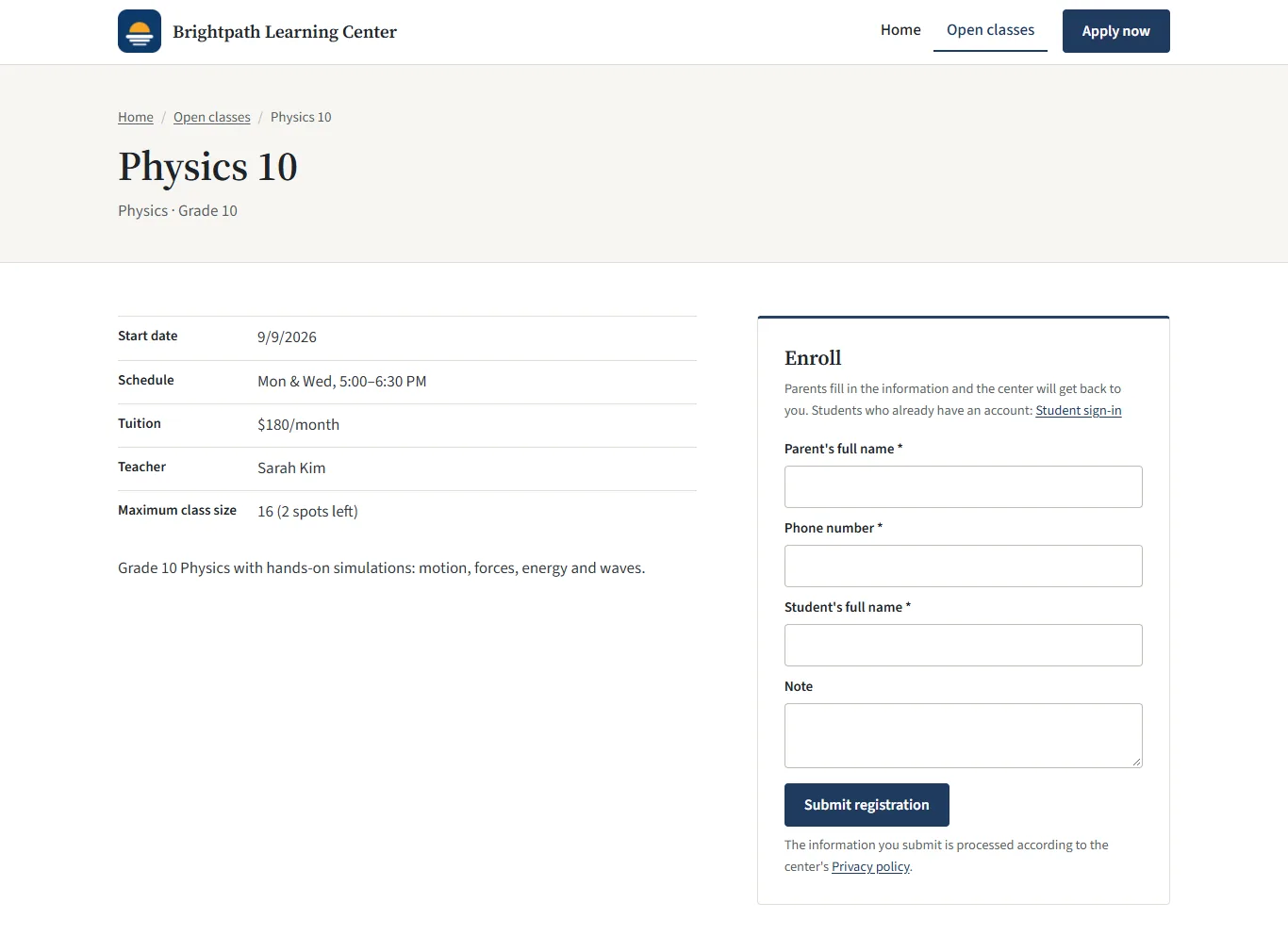
A class page on the center's own website, with the three-field form.
- Work the applications. Each sign-up appears under Students > Enrollment applications with the class, source and date, and the owner gets an email or a push notification. Set the status, a next follow-up date and who is responsible. Overdue follow-up shows only the ones that are late. Walk-ins and phone calls go in with Add lead, so every application is in the same list.
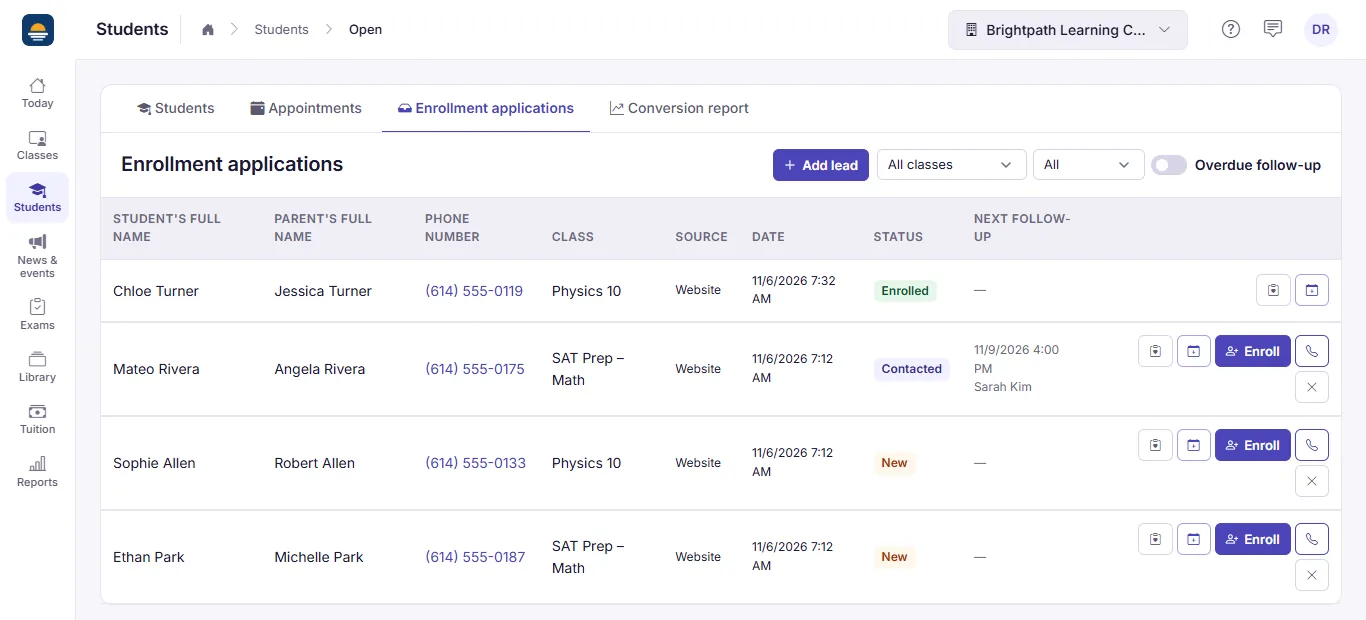
Applications by status. Mateo's follow-up is booked with Sarah Kim for Monday.
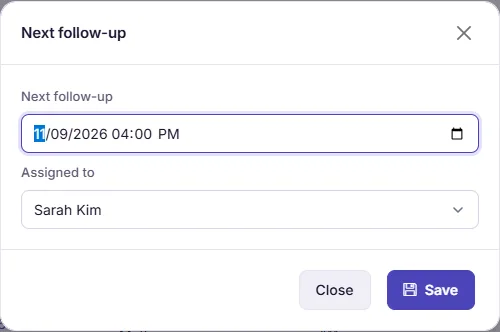
A follow-up date and the person responsible.
- Enroll. Enroll creates the student (or matches an existing one), adds them to the class and shows the student code. A dropped application asks for a reason from a fixed list, so the reasons can be counted later. The plan's student limit applies; if the center is at its limit, the application waits until there is room.
- Read the conversion report. The Conversion report tab counts applications by month, source and class, with the conversion rate and the median days to enroll.
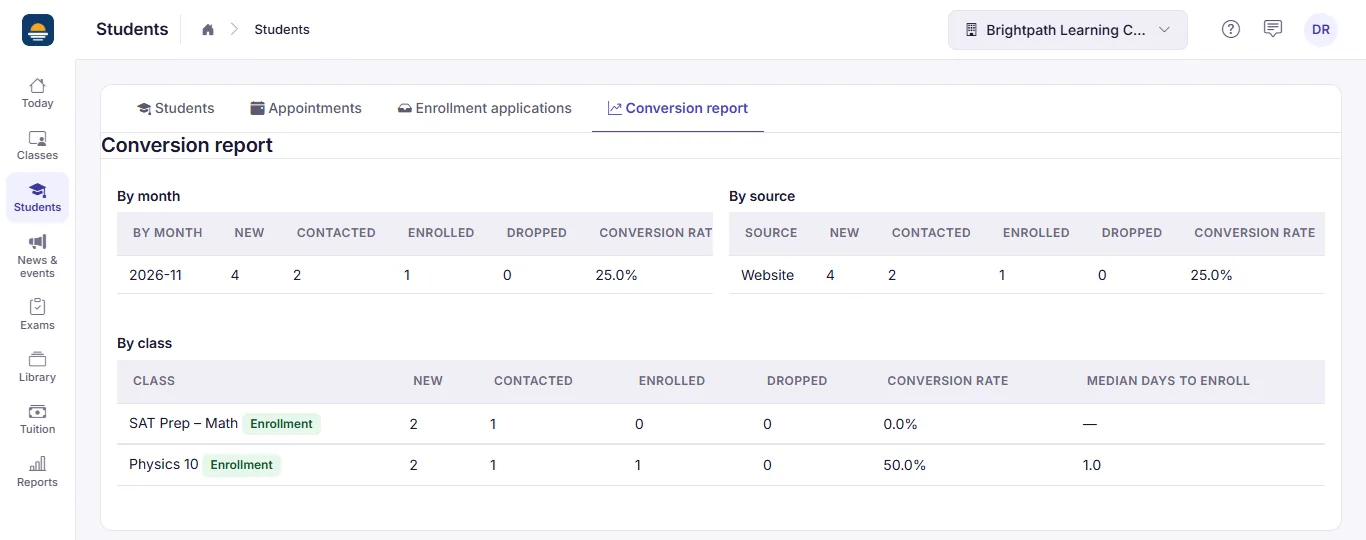
The conversion report for the demo center.
When no class is open, the enrollment block on your website still takes a name, phone number and message. These arrive in the same list as a general inquiry, and you choose the class when you enroll the student. For building the website itself, see Running a tutoring center.