How does AI test generation work in CLASSQR?
Generating a test on CLASSQR works like briefing a colleague: describe the test in one sentence, the AI repeats back what it understood so you can confirm, and only then does it start writing. There are three layers, from quick to detailed, and you can stop at whichever one gives you what you need:
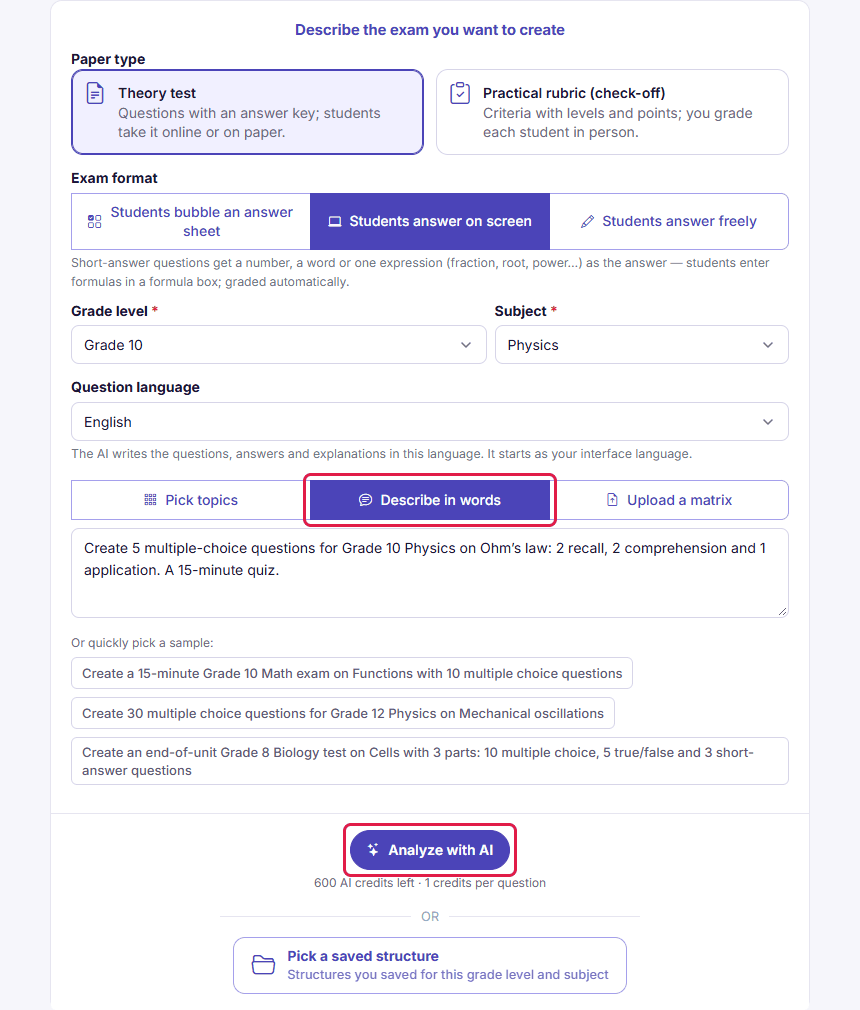
One box under “Describe in words”. For example: “Create 20 multiple-choice questions for Grade 10 Math, quadratic functions, 12 basic and 8 applied.”
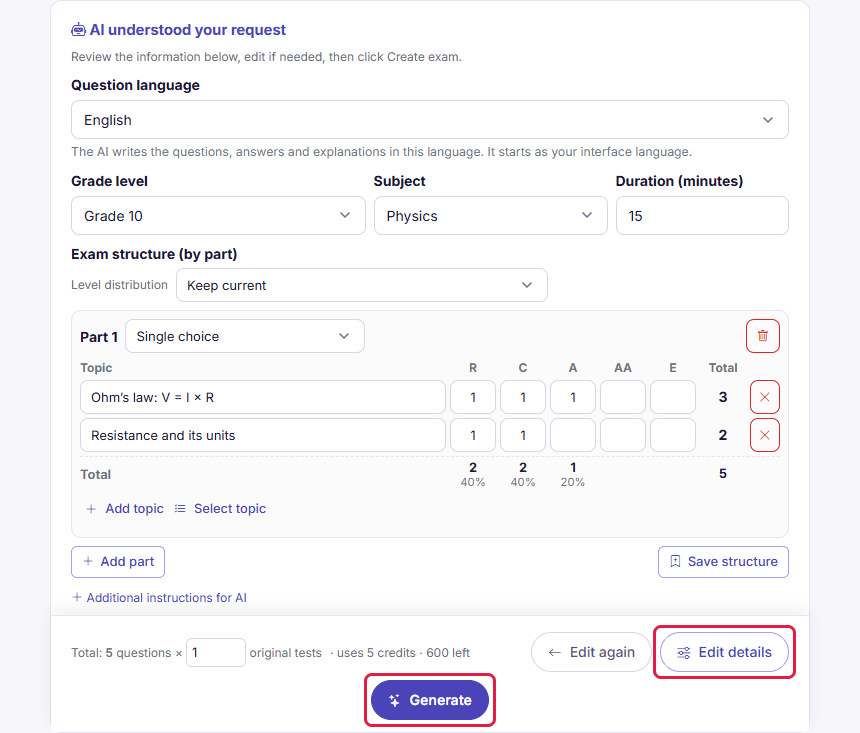
The AI reads your request and shows the “AI understood your request” card: grade, subject, duration, parts and question counts by level. Edit anything that’s off.
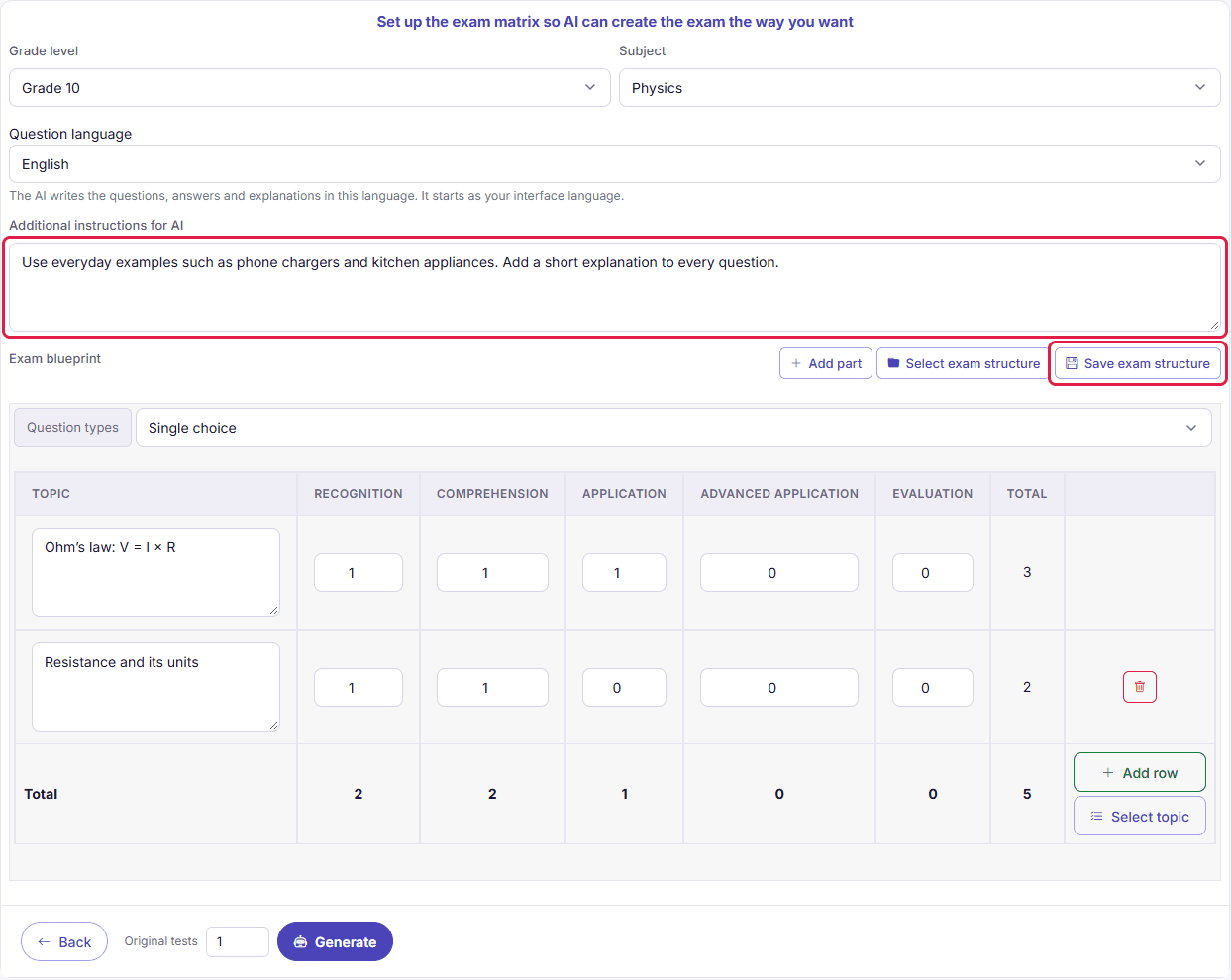
The “Exam blueprint”: a table of topics × 5 levels for each part, room for additional instructions to the AI, and the option to save it as a reusable exam structure.
After clicking Generate, the AI writes the questions in the background; you then preview each one, remove any you don’t want, and set the test name and duration before saving. A saved test can be used for homework, quizzes, in-class tests, cross-class exams, or printing.
Step 1: Describe the test you want
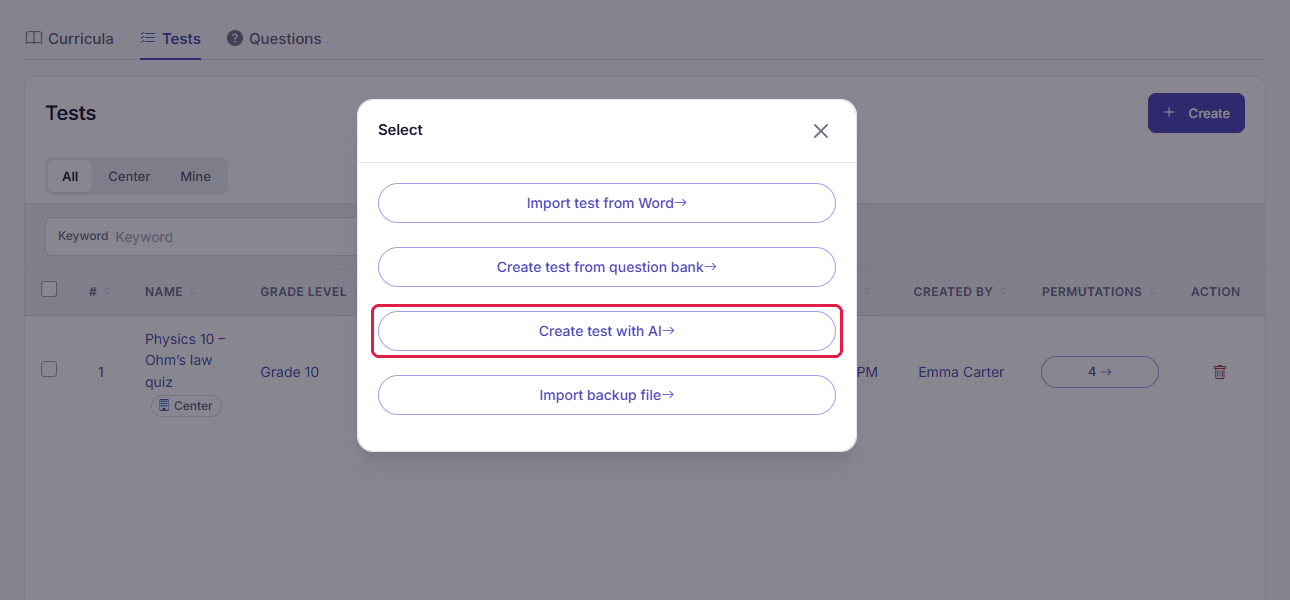
In the teaching workspace, open Library → Tests, click Create, and choose Create test with AI. Pick the Paper type, Exam format, Grade level and Subject, then open the Describe in words tab (next to Pick topics and Upload a matrix): one large box, with three samples to click:
- Create a 15-minute Grade 10 Math exam on Functions with 10 multiple choice questions
- Create 30 multiple choice questions for Grade 12 Physics on Mechanical oscillations
- Create an end-of-unit Grade 8 Biology test on Cells with 3 parts: 10 multiple choice, 5 true/false and 3 short-answer questions
A good description includes the subject, grade, topics (using the exact textbook wording if possible), how many questions of each type, and difficulty. Question types the AI can write:
| Question type | When to use it |
|---|---|
| Single-answer multiple choice | The most common type — scored against the answer key, answer order can be shuffled |
| Multi-answer multiple choice | Tests deeper understanding, scored by number of correct selections |
| True/false clusters | A set of four true/false statements under one prompt, common in standardized exams |
| Short answer / fill in the blank | The answer is a number or a short word, scored against the answer key |
| Essay | Graded by the teacher against a rubric and answer key |
| Matching | Pair concepts with definitions, or events with dates |
Step 2: Confirm what the AI understood
Click Analyze with AI; a few seconds later the AI understood your request card appears: question language, grade level, subject and duration (all editable), and the parts with question type, topics and question counts per level. This step doesn’t use credit. You have three options:
- Edit again: go back to the description box.
- Edit details: opens the full blueprint, pre-filled with what the AI understood, for fine-tuning.
- Generate: confirm and start writing questions.
The detailed blueprint (advanced)
The blueprint is how you tell the AI “this part has this question type, these topics, this many questions at each level.” Each part is one question type; inside it is a table with a topic column and 5 level columns: Recognition · Comprehension · Application · Advanced application · Evaluation. Use Add row for another topic and type a count into each cell; the total updates automatically.
The Additional instructions for AI box takes notes like “use real-world context”, “keep numbers whole”, “add a short explanation to every question”, or “no calculators allowed.” For a blueprint you’ll reuse, click Save exam structure; next time Select exam structure (or Pick a saved structure on the first step) has it ready — handy for a department standardizing on one blueprint across a grade level.
The AI writes the test; you preview and save
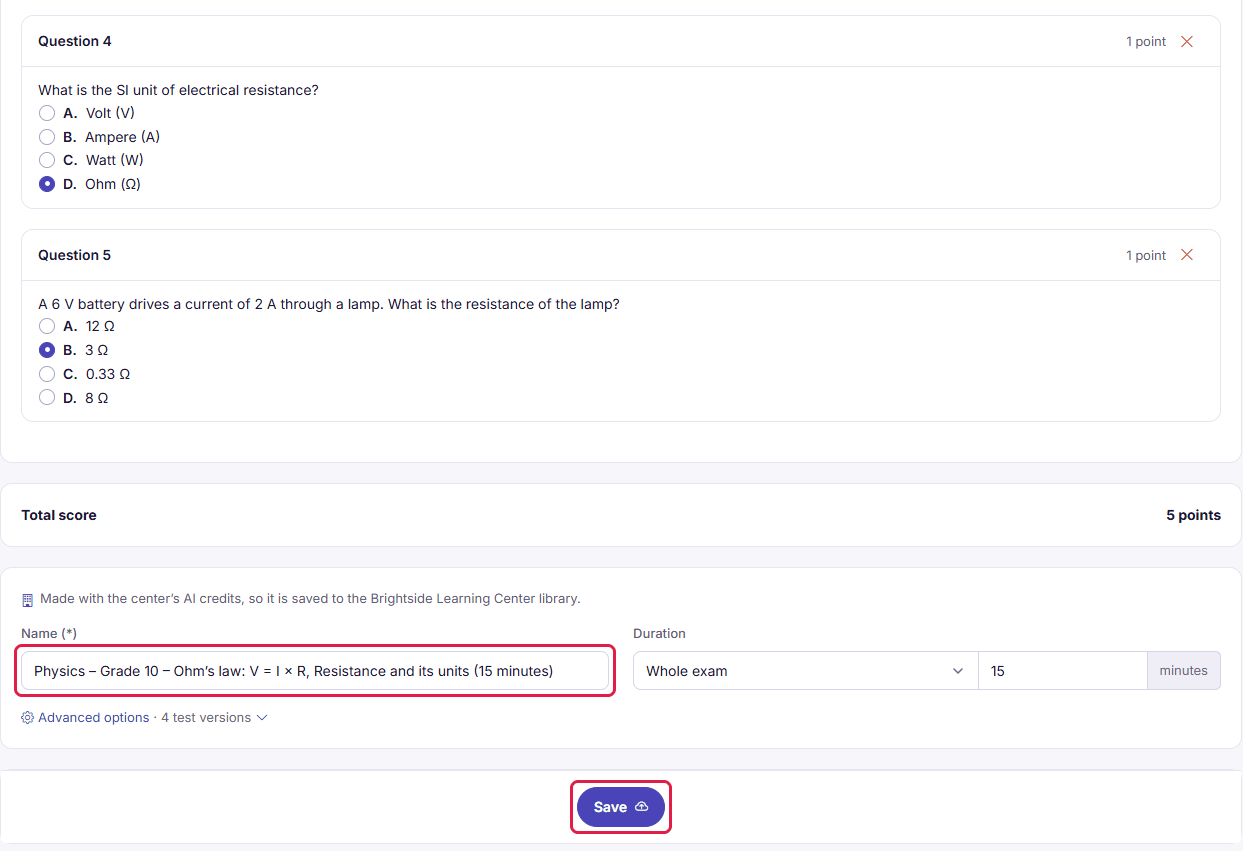
Question generation runs in the background, usually taking from half a minute to a few minutes depending on question count; a long test is split into batches so it doesn't get cut off partway. When it's done, a preview page shows every question with its answer. Here you:
- Review each question. Every question shows with its answer key marked; the × on a question removes it. To change the wording of a question, open the test after saving it.
- Set the test details. Name and Duration (Whole exam, Per part or Per question); each part’s bar sets the Score per question.
- Codes and shuffling. Under Advanced options, Permutations is how many shuffled versions to build from the same questions; each code is built from a Prefix, Starting from exam no., Number of characters and Suffix (e.g. 101, 102, 103…). Each part has Shufflable, a Weight and an optional Time per item.
- Save. The test appears in Library → Tests, ready to assign or print.
After you have a test: assign it, print it, run an exam session
- Print or export to Word. The download builds each code variant and its bubble sheet; choose a two-column layout to save paper.
- Generate an equivalent test. In the test’s details, Create equivalent exams with AI writes a fresh set of questions with the same structure and difficulty — useful for a later section or for students retaking practice.
- Assign it in class. In a lesson, add a Test activity (timed, taken seriously), a Quiz (played live in class, students join with a QR code), or an Assignments activity that asks students to take it; objective questions are scored against the answer key with fixed rules, and results flow into the gradebook and weekly report.
- Exams. Exams → Create exam: choose Cross-class exam or Exam within one class, set a name and date, pick the test, and add candidates by class or individually. Each exam has an Exam room link; the teacher starts it, watches who’s taking it, flags rule violations, and stops it when time is up. Once an exam has started, the candidate list locks.
- Results. The gradebook shows correct-answer rates by topic and difficulty, and the weekly report to parents includes them.
- Where it is saved. A test made with AI uses the center’s AI credits, so it is saved to the center library, where every teacher of the center can use it. Center library and My library
Three other ways to get a test
| Method | When to use it | How |
|---|---|---|
| Import test from Word | You already have a test drafted | Upload a .docx file; the system splits out questions and answers for you to preview, edit, and save. “Import backup file” restores a test you exported earlier. |
| Create test from question bank | The center already has a question bank organized by topic and difficulty | Pick a bank, set the blueprint, and the system pulls matching questions at random to fill each cell. The bank also has an AI button to generate questions straight into a topic × difficulty cell. |
| Save from the public test catalog | You need a reference test quickly | Visit the public test catalog, open a test, and click Add to account: the test and its questions are copied into a new question bank of yours to edit freely. |
How are AI credits counted?
Every center shares one credit balance across its AI features. Test generation deducts credit per question actually requested, and only after the AI responds; before that, the system has already confirmed there’s enough credit for the whole test, and warns you immediately with the amount needed and remaining if not. Standard and Pro plans get a credit grant every month; the owner can buy more in Settings → Plans. New accounts get a trial credit to try it out. See pricing in Center Solutions.
Get started now
Sign in to build a test: you’ll land on the Tests list; click Create → Create test with AI. Want students to take the test in class right away? Read Interactive Lessonsto add a Test or Quiz activity to a session.
Frequently asked questions
Does AI test generation follow the right curriculum?
You pick the subject, grade level, and topics; the AI receives those along with your difficulty blueprint. It can still phrase a question awkwardly or give a question the wrong answer key, so always preview and fix each question before saving and assigning it.
How many credits does AI test generation use?
Credits are deducted per question actually requested, at the current rate shown in the Plans tab. The system checks you have enough credit for the whole test before calling the AI, so you never end up with a half-finished test and no credit left. Understanding your request doesn’t cost credit.
I already have a test written in Word — can I use that?
Yes, use Import test from Word: upload the file and the system splits out questions and answers for you to preview and edit before saving it as a normal test. Math notation in the Word file is preserved. Import backup file restores a test from a backup file you exported earlier.
Can a generated test be printed?
Yes. Every test downloads as Word or PDF, with shuffled answer keys and bubble sheets included.
Can students take a test on a phone?
Yes. Exam sessions and practice assignments run in the browser on phones, tablets, and computers. Objective questions use rule-based answer-key scoring the moment they're submitted; essay questions are marked by the teacher.